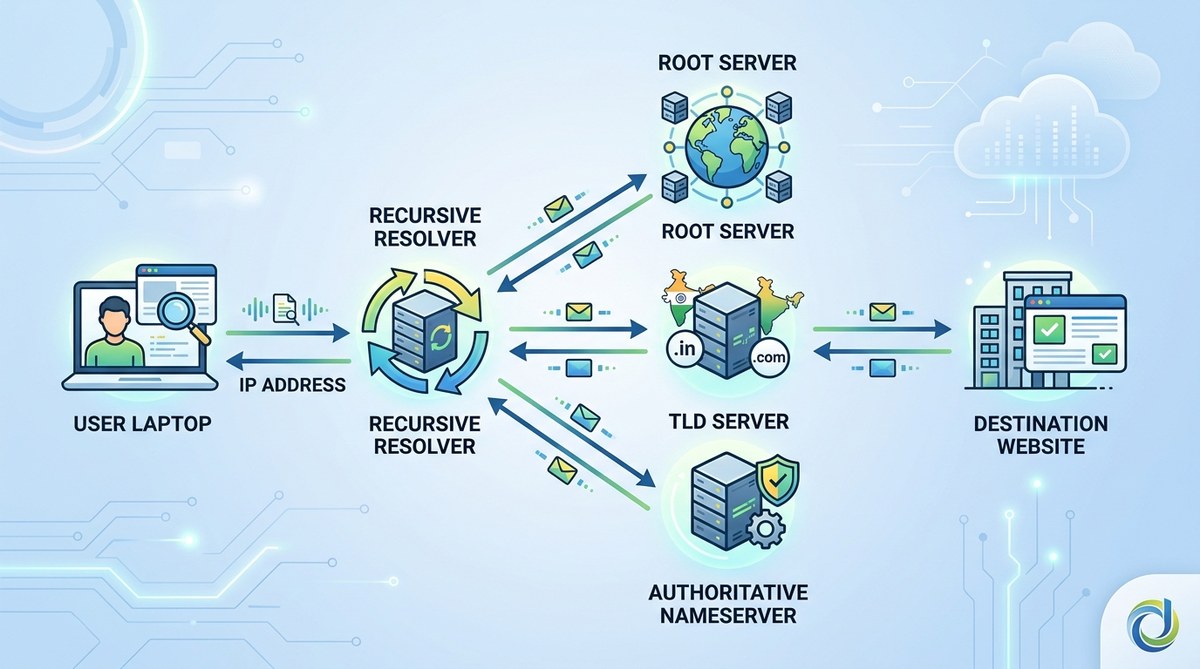
You type a website address into your browser and press enter. Within milliseconds, a page loads. But between your keypress and that page appearing, an invisible system performs a complex series of lookups across multiple servers worldwide. That system is DNS, the Domain Name System, and it’s the reason you can type words instead of numbers to reach websites.
DNS works like a phone directory for the internet, translating human-friendly domain names into machine-readable IP addresses. When you request a website, your device queries recursive resolvers, root servers, TLD nameservers, and authoritative nameservers in sequence. This distributed hierarchy ensures billions of daily lookups happen in fractions of a second, making the web accessible without memorising numeric addresses.
Why we need DNS in the first place
Computers communicate using IP addresses. These are strings of numbers like 192.0.2.1 for IPv4 or 2001:0db8:85a3:0000:0000:8a2e:0370:7334 for IPv6.
Humans struggle to remember such numbers. We’re better with words.
DNS bridges this gap. It lets you type domaininsider.in instead of memorising 203.0.113.42.
The system maintains a distributed database mapping domain names to IP addresses. Every time you visit a website, DNS performs this translation behind the scenes.
The four types of DNS servers involved in every lookup
DNS isn’t a single server. It’s a hierarchy of specialised servers, each with a specific role.
Recursive resolver
This is your starting point. When you type a domain, your device sends the request to a recursive resolver, usually operated by your internet service provider or a public DNS service like Google DNS or Cloudflare.
The recursive resolver doesn’t know the answer immediately. Its job is to ask other servers on your behalf and cache the results for future requests.
Root nameserver
There are 13 root nameserver systems worldwide, labelled A through M. These servers don’t know where specific websites live, but they know which servers handle top-level domains like .com, .in, or .org.
The recursive resolver asks a root server, “Where can I find information about .in domains?” The root server responds with the address of the TLD nameserver.
TLD nameserver
Top-level domain nameservers manage specific extensions. One set handles .com, another handles .in, and so on.
When the recursive resolver contacts the .in TLD nameserver and asks about domaininsider.in, this server responds with the address of the authoritative nameserver for that specific domain.
Authoritative nameserver
This is the final stop. The authoritative nameserver holds the actual DNS records for the domain. It knows the exact IP address where domaininsider.in lives.
It sends this IP back to the recursive resolver, which then forwards it to your browser. Your browser can now connect directly to the web server.
Step-by-step breakdown of a DNS query
Here’s what happens when you type a domain name into your browser.
-
Browser cache check: Your browser first checks its own cache to see if it recently looked up this domain. If found, it skips the entire DNS process.
-
Operating system cache check: If the browser cache misses, your operating system checks its DNS cache. Many lookups end here.
-
Recursive resolver query: If still not found, your device contacts the recursive resolver configured in your network settings.
-
Root server query: The recursive resolver asks a root nameserver which TLD nameserver handles the domain’s extension.
-
TLD nameserver query: The resolver contacts the appropriate TLD nameserver and asks for the authoritative nameserver.
-
Authoritative nameserver query: The resolver queries the authoritative nameserver for the actual IP address.
-
Response delivery: The IP address travels back through the chain to your browser.
-
Connection establishment: Your browser uses the IP address to connect to the web server and request the page.
The entire process typically takes 20 to 120 milliseconds. Caching at multiple levels makes subsequent visits even faster.
Different types of DNS records and what they do
Authoritative nameservers store various record types. Each serves a different purpose.
| Record Type | Purpose | Example Value |
|---|---|---|
| A | Maps domain to IPv4 address | 192.0.2.1 |
| AAAA | Maps domain to IPv6 address | 2001:0db8::1 |
| CNAME | Creates alias pointing to another domain | www points to example.com |
| MX | Specifies mail servers for the domain | mail.example.com priority 10 |
| TXT | Stores text information for verification | SPF records, domain verification codes |
| NS | Identifies authoritative nameservers | ns1.example.com |
A records are the most common. They directly link a domain name to an IP address.
CNAME records let you point multiple names to the same destination. For instance, www.domaininsider.in and domaininsider.in can both point to the same server using a CNAME.
MX records handle email routing. They tell sending servers where to deliver messages for your domain.
TXT records serve multiple purposes, from proving domain ownership to email authentication protocols like SPF and DKIM.
Understanding what exactly happens when you type a domain name in your browser helps clarify why these different record types matter.
How DNS caching speeds up the internet
Without caching, every website visit would require four separate queries. The internet would crawl.
DNS caching happens at multiple levels:
- Browser cache: Stores recent lookups for a few minutes to an hour
- Operating system cache: Maintains a local DNS cache
- Recursive resolver cache: Keeps popular domains cached for thousands of users
- ISP cache: Serves entire networks with cached results
Each DNS record includes a TTL (Time To Live) value, measured in seconds. This tells caching servers how long to store the information before requesting a fresh copy.
A TTL of 3600 means the record stays cached for one hour. A TTL of 86400 means 24 hours.
Lower TTLs give you more control when making changes but increase DNS query volume. Higher TTLs reduce server load but delay propagation of updates.
When planning DNS changes, reduce your TTL values a day or two in advance. This ensures caches expire faster when you make the actual change, reducing downtime during migrations.
Common DNS problems and how they manifest
DNS issues create specific symptoms.
Slow website loading: If DNS lookups take too long, pages appear to hang before loading. This often indicates problems with your recursive resolver.
Domain not found errors: When DNS can’t resolve a name, browsers display “server not found” or “DNS_PROBE_FINISHED_NXDOMAIN” errors.
Intermittent access: If some users can reach your site while others cannot, stale cache entries or propagation delays might be responsible.
Email delivery failures: Incorrect MX records prevent emails from reaching your domain.
Subdomain issues: Problems with subdomains vs subdirectories often trace back to missing or misconfigured DNS records.
DNS propagation and why changes take time
When you update DNS records, the changes don’t appear instantly everywhere.
DNS propagation refers to the time required for updated records to spread across all DNS servers globally.
This delay happens because of caching. Servers holding cached copies of your old records won’t check for updates until the TTL expires.
If your A record had a TTL of 86400 seconds (24 hours), some servers might serve the old IP address for up to 24 hours after you make a change.
Propagation typically completes within 24 to 48 hours, though most changes appear much faster.
You can check propagation status using online DNS checkers that query servers in different geographic locations.
Security considerations with DNS
DNS wasn’t designed with security as a priority. Several vulnerabilities exist.
DNS spoofing: Attackers can inject false DNS responses, redirecting users to malicious sites. This is also called cache poisoning.
DNS hijacking: Malicious actors change DNS settings at the registrar level, redirecting all traffic to servers they control.
DDoS attacks: Attackers can overwhelm DNS servers with requests, making domains unresolve for legitimate users.
DNSSEC: DNS Security Extensions add cryptographic signatures to DNS records, allowing resolvers to verify authenticity. Adoption remains incomplete but growing.
Choosing reputable nameservers and enabling domain privacy protection helps mitigate some risks.
Public DNS resolvers and why people use them
Your ISP provides a default recursive resolver, but you’re not stuck with it.
Public DNS services offer alternatives:
- Google Public DNS (8.8.8.8 and 8.8.4.4): Fast, reliable, widely used
- Cloudflare DNS (1.1.1.1 and 1.0.0.1): Emphasises privacy and speed
- Quad9 (9.9.9.9): Blocks known malicious domains
- OpenDNS: Offers filtering and parental controls
People switch to public DNS for several reasons:
- Faster resolution times
- Better reliability
- Enhanced privacy policies
- Built-in malware blocking
- Bypassing ISP restrictions
Changing your DNS resolver is straightforward. You modify network settings on your device or router to point to the public DNS IP addresses instead of your ISP’s defaults.
How DNS fits into domain registration
When you register a domain, you’re not just buying a name. You’re claiming the right to control its DNS records.
Your domain registrar provides default nameservers. These are the authoritative nameservers that will respond to queries about your domain.
You can either:
- Use the registrar’s nameservers and manage DNS records through their interface
- Point to third-party nameservers (like those provided by your web host)
- Run your own nameservers if you have the technical capability
Many registrars bundle basic DNS management with registration. Premium services might charge extra for advanced features like DNSSEC or more frequent updates.
Avoiding common domain name mistakes every first-time buyer should avoid includes understanding how DNS configuration works before you need to troubleshoot problems.
DNS round robin and load balancing
A single domain can point to multiple IP addresses. When this happens, DNS can distribute traffic across servers.
DNS round robin returns different IP addresses in rotating order. Each query gets a different address from the list.
For example, example.com might have three A records:
- 192.0.2.1
- 192.0.2.2
- 192.0.2.3
The DNS server rotates which address appears first in responses. Some clients connect to the first IP, distributing load across all three servers.
This provides basic load balancing and redundancy. If one server fails, others continue serving traffic.
More sophisticated systems use geographic DNS, returning different IPs based on the user’s location to reduce latency.
The role of DNS in email delivery
Email systems rely heavily on DNS.
When you send an email to [email protected], your mail server performs an MX record lookup for example.com. This reveals which servers accept mail for that domain.
Multiple MX records can exist, each with a priority number. Lower numbers indicate higher priority. Mail servers try the highest priority server first, falling back to others if it’s unavailable.
SPF, DKIM, and DMARC records (all stored as TXT records) help prevent email spoofing and improve deliverability. They tell receiving servers how to verify that messages claiming to come from your domain are legitimate.
Misconfigured email DNS records are among the most common causes of delivery problems.
How long DNS records should be set for
The TTL value you choose depends on your needs.
Short TTLs (300 to 900 seconds): Use these when:
– Planning infrastructure changes
– Testing new configurations
– Running time-sensitive campaigns
– Needing flexibility to respond to issues
Medium TTLs (3600 to 7200 seconds): Balanced approach for:
– Most production websites
– Standard business operations
– Moderate change frequency
Long TTLs (43200 to 86400 seconds): Appropriate when:
– Infrastructure is stable
– Changes are rare
– Reducing DNS query volume matters
– Improving performance slightly
Questions about how long should you register a domain name for often pair with DNS TTL considerations, as both involve planning timescales.
Reverse DNS and why it matters
Standard DNS maps names to IP addresses. Reverse DNS does the opposite, mapping IP addresses back to domain names.
This uses PTR (pointer) records in a special domain space called in-addr.arpa for IPv4 and ip6.arpa for IPv6.
Reverse DNS primarily matters for:
Email servers: Many mail servers reject messages from IPs without proper reverse DNS. It’s an anti-spam measure.
Logging and analytics: Server logs can show domain names instead of just IP addresses, making analysis easier.
Network troubleshooting: Administrators use reverse DNS to identify devices and track down issues.
Your hosting provider or ISP typically controls reverse DNS for your IP addresses, not your domain registrar.
DNS and website migrations
Moving your website to a new host requires careful DNS management.
The safest approach:
- Set up the new hosting environment completely
- Lower your DNS TTL values 24 to 48 hours before migration
- Test the new server using its direct IP address or temporary URL
- Update your A record to point to the new server’s IP
- Monitor both old and new servers during propagation
- Keep the old server running for at least 48 hours
- Restore normal TTL values once migration completes
This minimises downtime. Some visitors reach the old server while their DNS cache expires, others reach the new server immediately.
Rushing DNS changes causes outages. Taking time ensures smooth transitions.
The future of DNS technology
DNS continues evolving.
DNS over HTTPS (DoH): Encrypts DNS queries, preventing ISPs and network operators from seeing which sites you visit. Firefox and Chrome support this.
DNS over TLS (DoT): Similar privacy benefits using a different encryption protocol.
DNSSEC adoption: Growing slowly but providing authenticated responses that prevent spoofing.
Decentralised DNS: Blockchain-based alternatives like Handshake aim to remove centralised control, though adoption remains minimal.
Faster resolution: Continued optimisation reduces lookup times, especially for mobile users.
These technologies address privacy, security, and performance concerns while maintaining backward compatibility with existing systems.
Putting DNS knowledge to work
DNS seems complex at first. Break it down into components and it becomes manageable.
You don’t need to memorise every detail. Understanding the basic flow (recursive resolver asks root server, root points to TLD server, TLD points to authoritative server, authoritative server provides the IP) covers most situations.
When DNS problems occur, you’ll recognise symptoms and know where to look. When planning website changes, you’ll understand why propagation takes time and how to minimise disruption.
The internet depends on DNS working invisibly in the background. Now you know what happens in those milliseconds between typing a domain and seeing a page load.
