
You type a website address into your browser, hit Enter, and a page appears. Seems simple enough. But behind that familiar action lies a fascinating chain of events involving multiple servers, protocols, and systems working together in milliseconds. Understanding this process isn’t just academic trivia. It helps you debug connection issues, optimise website performance, and build better web applications.
When you type a URL, your browser parses it, looks up the domain’s IP address through DNS servers, establishes a TCP connection, sends an HTTP request, receives the server’s response, and renders the HTML, CSS, and JavaScript into the visual page you see. This entire journey typically completes in under a second, involving multiple systems across the internet.
Breaking Down the URL Structure
Before anything happens, your browser needs to understand what you typed. A URL (Uniform Resource Locator) contains several distinct components that tell your browser exactly where to go and what to fetch.
Take this example: https://www.example.com/blog/article?id=123
The scheme (https) tells the browser which protocol to use. HTTPS means secure HTTP, which encrypts the data between your browser and the server. The domain (www.example.com) identifies which server to contact. The path (/blog/article) specifies which resource on that server you want. The query parameters (?id=123) provide additional information to the server.
Your browser parses these components instantly. If you leave out the scheme, most modern browsers assume HTTPS first, falling back to HTTP if needed. If you type just a word without dots, the browser might treat it as a search query instead.
Finding the Server Through DNS Resolution
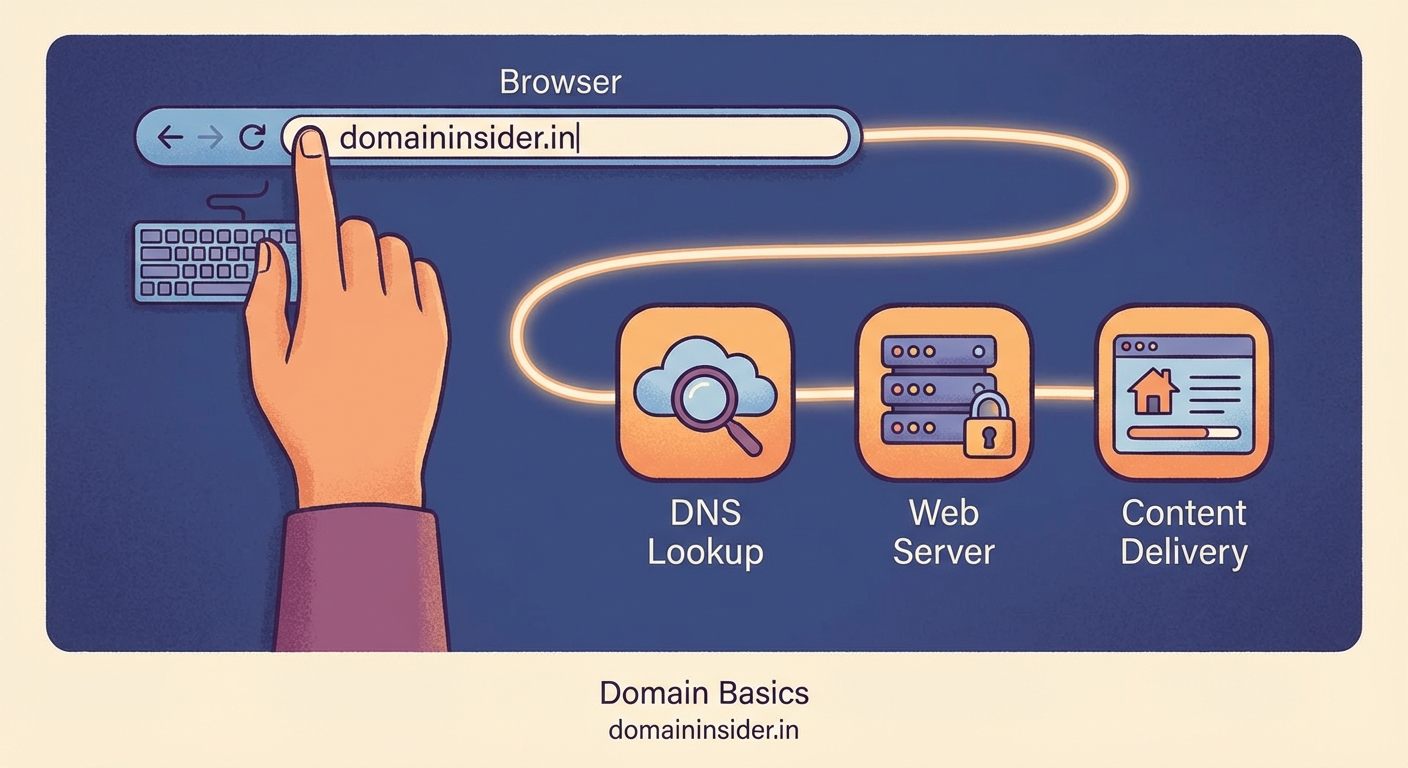
Your browser now knows where you want to go, but computers don’t communicate using domain names. They need IP addresses. This is where the Domain Name System (DNS) comes in.
Think of DNS as the internet’s phone book. It translates human-friendly domain names into machine-readable IP addresses like 192.0.2.1 or 2001:db8::1.
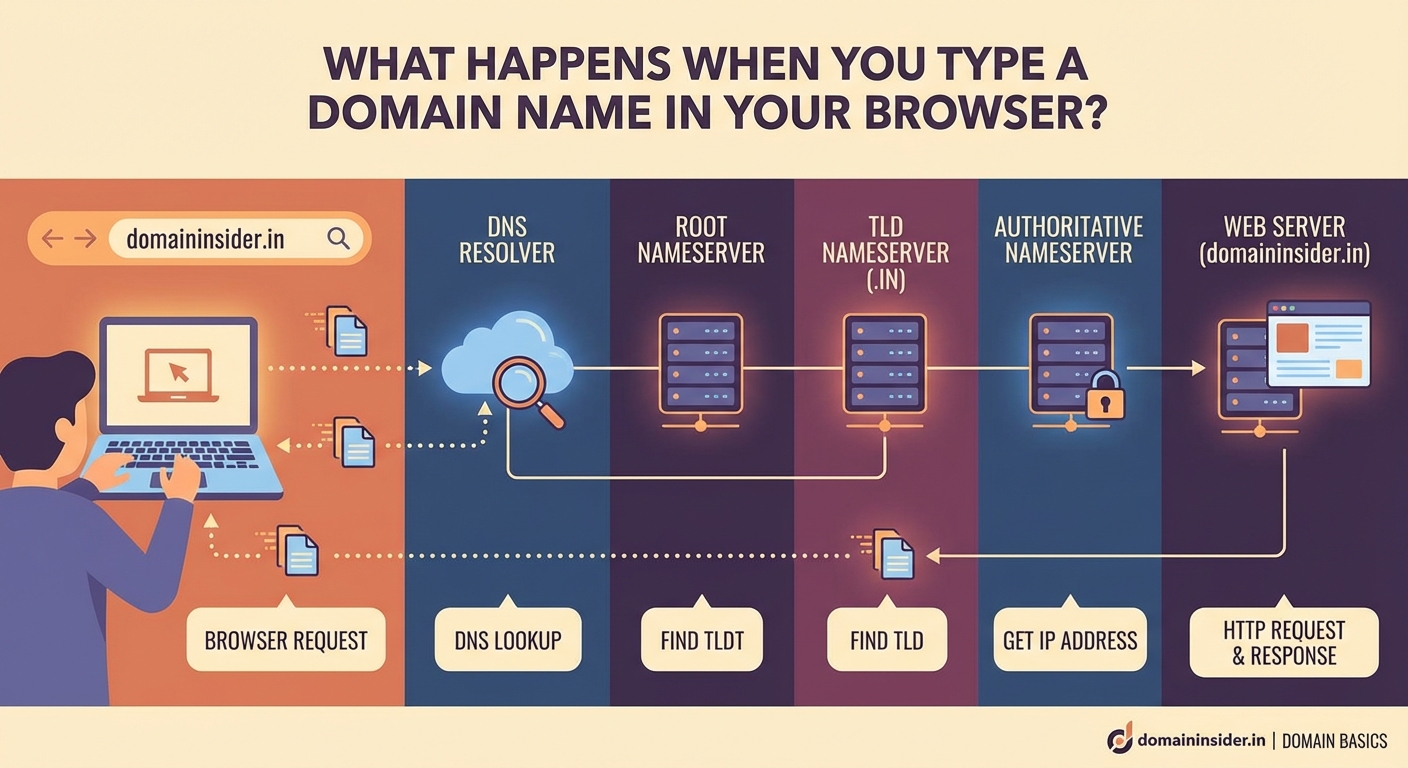
The DNS lookup follows a specific hierarchy:
- Browser cache: Your browser checks if it recently looked up this domain and still remembers the IP address.
- Operating system cache: If the browser doesn’t know, it asks your operating system, which maintains its own DNS cache.
- Router cache: Your home or office router might have cached the address from a previous lookup.
- ISP’s DNS resolver: Your Internet Service Provider runs DNS servers that handle lookups for their customers.
- Root nameservers: If the ISP doesn’t know, the query goes to one of 13 root nameserver systems that direct traffic to the right top-level domain.
- TLD nameservers: These servers handle specific extensions like .com, .org, or .in and point to the authoritative nameservers.
- Authoritative nameservers: These servers have the definitive answer for the specific domain and return the IP address.
This sounds like many steps, but caching makes it incredibly fast. Most lookups complete in under 50 milliseconds because the answer is already cached somewhere along the chain.
DNS caching is crucial for internet performance. Without it, every single web request would require a full DNS lookup, adding hundreds of milliseconds to every page load. Cache times (TTL values) are set by domain owners and typically range from 5 minutes to 24 hours.
Establishing the TCP Connection
Now that your browser has the IP address, it needs to establish a connection with the server. This uses the Transmission Control Protocol (TCP), which ensures reliable data transfer.
The browser initiates what’s called a three-way handshake:
- Your browser sends a SYN (synchronise) packet to the server, essentially saying “I want to connect.”
- The server responds with a SYN-ACK (synchronise-acknowledge) packet, saying “I received your request and I’m ready.”
- Your browser sends an ACK (acknowledge) packet back, confirming the connection is established.
This handshake happens incredibly fast, usually in 20 to 100 milliseconds depending on the physical distance between you and the server.
If you’re using HTTPS (which you should be), there’s an additional step called the TLS handshake. This establishes encryption between your browser and the server:
- The browser and server agree on which encryption protocols to use
- They exchange cryptographic keys
- They verify the server’s SSL/TLS certificate to confirm its identity
- They establish an encrypted connection
The TLS handshake adds another round trip, but it’s essential for security. It prevents anyone between you and the server from reading or tampering with your data.
Sending the HTTP Request
With a secure connection established, your browser sends an HTTP request to the server. This request contains several important pieces of information:
Request line: Specifies the HTTP method (usually GET for viewing pages), the path you want, and the HTTP version.
Headers: Include metadata like which browser you’re using, what types of content you accept, cookies for the site, and whether you want the page compressed.
Body: For GET requests, this is usually empty. For POST requests (like submitting a form), this contains the data you’re sending.
Here’s what a typical request looks like:
GET /blog/article?id=123 HTTP/1.1
Host: www.example.com
User-Agent: Mozilla/5.0...
Accept: text/html,application/xhtml+xml
Accept-Language: en-IN,en;q=0.9
Accept-Encoding: gzip, deflate, br
Cookie: session=abc123
The server receives this request and processes it according to its programming.
Server Processing and Response
The server now does its work. For a simple static HTML page, it just reads the file from disk and sends it back. For dynamic pages, it might:
- Execute server-side code (PHP, Python, Node.js, etc.)
- Query databases to fetch relevant data
- Check authentication and authorisation
- Assemble HTML from templates
- Apply business logic and transformations
Once the server has prepared the response, it sends back an HTTP response with three main components:
Status line: Contains the HTTP version, a status code, and a status message. Common codes include 200 (OK), 301 (Moved Permanently), 404 (Not Found), and 500 (Internal Server Error).
Response headers: Provide metadata about the response, including content type, content length, caching instructions, cookies to set, and server information.
Response body: The actual content, usually HTML for web pages.
The server might also send resources in compressed format to save bandwidth. Modern servers typically use gzip or brotli compression, which can reduce file sizes by 70% or more.
Browser Rendering Process
Your browser now has the HTML, but the page isn’t visible yet. The rendering process involves multiple stages that happen in a specific order:
Parsing HTML and Building the DOM
The browser reads the HTML from top to bottom, constructing a Document Object Model (DOM) tree. This is a structured representation of all the elements on the page and their relationships.
When the parser encounters references to external resources (CSS files, JavaScript files, images), it initiates additional HTTP requests to fetch them. This is why a single page load often involves dozens of separate requests.
Processing CSS and Building the CSSOM
The browser parses CSS files and inline styles to create a CSS Object Model (CSSOM). This represents all the styling rules and how they apply to different elements.
CSS can block rendering because the browser needs to know how elements should look before displaying them. This is why performance experts recommend putting critical CSS inline in the HTML head.
Executing JavaScript
JavaScript can modify both the DOM and CSSOM, so the browser needs to handle it carefully. Scripts can be:
- Blocking: The browser stops parsing HTML until the script downloads and executes
- Async: The script downloads in parallel and executes as soon as it’s ready
- Defer: The script downloads in parallel but only executes after HTML parsing completes
JavaScript execution is often the biggest performance bottleneck in modern web applications.
Constructing the Render Tree
The browser combines the DOM and CSSOM to create a render tree. This contains only the elements that will actually be visible on the page, with their computed styles.
Elements with display: none don’t appear in the render tree. Neither do elements in the <head> section or script tags.
Layout Calculation
The browser calculates the exact position and size of every element. This process is sometimes called “reflow.” It considers:
- The viewport size
- Element dimensions and positioning rules
- Flex and grid layouts
- Text wrapping and line breaks
Layout is computationally expensive, especially for complex pages with thousands of elements.
Painting and Compositing
Finally, the browser paints pixels to the screen. Modern browsers use a compositing approach, dividing the page into layers that can be painted independently and combined efficiently.
Animations and scrolling that only affect certain layers can be very smooth because the browser doesn’t need to repaint everything.
Common Issues and How to Spot Them
Understanding this process helps you diagnose problems when they occur. Here’s a table showing common issues, their symptoms, and where they occur in the process:
| Issue | Symptoms | Stage | Typical Cause |
|---|---|---|---|
| DNS failure | “Server not found” error | DNS resolution | Domain expired, misconfigured nameservers |
| Connection timeout | Page loading indefinitely | TCP connection | Server down, firewall blocking |
| SSL error | “Connection not secure” warning | TLS handshake | Expired certificate, date/time wrong |
| 404 error | “Page not found” message | Server response | Wrong URL, deleted content |
| Slow initial load | White screen for seconds | DNS/TCP/TLS | Poor server location, slow DNS |
| Slow rendering | Content visible but interactive late | JavaScript execution | Too much JavaScript, blocking scripts |
Each stage can fail or slow down for different reasons. Browser developer tools let you see exactly where time is being spent.
Performance Optimisation Strategies
Knowing the process reveals opportunities for optimisation:
- Reduce DNS lookups: Use fewer domains for resources. Each unique domain requires a separate DNS lookup.
- Enable HTTP/2 or HTTP/3: These newer protocols allow multiple requests over a single connection, eliminating repeated TCP handshakes.
- Implement caching: Proper cache headers let browsers reuse resources without making new requests.
- Minimise render-blocking resources: Critical CSS should be inline, JavaScript should be async or defer when possible.
- Optimise images: Compress images and use modern formats like WebP. Images often account for 50% or more of page weight.
- Use a CDN: Content Delivery Networks place your resources on servers closer to users, reducing latency.
Even small improvements at each stage compound. Shaving 50ms off DNS, 100ms off the TLS handshake, and 200ms off rendering can make your site feel dramatically faster.
How Modern Browsers Optimise This Process
Browsers have become incredibly sophisticated at speeding up this process. They use several clever techniques:
DNS prefetching: When you hover over a link, the browser might start the DNS lookup before you even click.
Preconnecting: Browsers can establish TCP and TLS connections to servers they predict you’ll need soon.
HTTP/2 server push: Servers can send resources the browser will need before it even requests them.
Resource hints: Developers can add tags like “ to tell the browser which resources are critical.
Speculative parsing: While JavaScript executes, the browser continues parsing HTML to discover resources it can start fetching.
These optimisations mean the actual process is often more parallel and predictive than the linear description suggests. Multiple steps happen simultaneously.
Security Considerations Throughout the Journey
Each stage of this process has security implications:
- DNS: Can be hijacked to redirect you to malicious servers (DNS spoofing). DNSSEC provides cryptographic verification.
- TCP/IP: Your ISP and network administrators can see which IP addresses you connect to. VPNs encrypt this information.
- TLS: Protects the actual data in transit. Always verify the padlock icon appears for sensitive sites.
- HTTP headers: Can leak information about your system. Privacy-focused browsers limit this.
- Cookies: Track you across sessions. Third-party cookies enable cross-site tracking.
Understanding these risks helps you make informed decisions about privacy tools and browsing habits.
The Role of CDNs and Edge Computing
Modern websites rarely serve content from a single server. Content Delivery Networks distribute copies of resources to servers around the world.
When you request a page, the CDN directs you to the nearest edge server. This reduces the physical distance data travels, cutting latency significantly.
Edge computing takes this further, running actual application code at these distributed locations. This means dynamic content can be generated close to you, not just static files.
For users in India, this might mean connecting to a server in Mumbai instead of one in California. That can reduce latency from 200ms to 20ms, a tenfold improvement.
What This Means for Developers and Site Owners
If you’re building websites or managing online properties, this knowledge directly impacts your work:
- Choose reliable DNS providers: Your DNS provider is a critical piece of infrastructure. Downtime means your site is unreachable even if your servers are fine.
- Implement HTTPS everywhere: It’s no longer optional. Search engines penalise HTTP sites, and browsers mark them as “not secure.”
- Monitor all stages: Use real user monitoring (RUM) to see how actual visitors experience each stage of the loading process.
- Optimise for mobile networks: Mobile connections have higher latency and less bandwidth. Every round trip hurts more.
- Test from multiple locations: A site that loads fast from your office might be slow for users in other regions.
The difference between a site that loads in 1 second versus 5 seconds can be millions in revenue for e-commerce sites and dramatically affects engagement for all sites.
Understanding Makes Everything Clearer
This process happens billions of times per day, usually flawlessly and invisibly. Each step represents decades of engineering work to make the internet fast, reliable, and secure.
When you understand what happens when you type a URL, you gain practical skills for debugging, optimising, and building better web experiences. You’ll recognise whether a slow site is suffering from DNS issues, server problems, or bloated JavaScript. You’ll appreciate why certain best practices matter and make informed technical decisions.
The next time you type a web address and see a page appear, you’ll know the remarkable journey that just completed in the blink of an eye.
